chapter 9 - Introduction to Photoshop
Learn the fundamentals of photoshop
Learn the fundamentals of photo editing and retouching using Adobe Photoshop, including layers, masks, healing tools, and AI-powered features.
What You’ll Learn in This chapter
Photoshop for Photographers
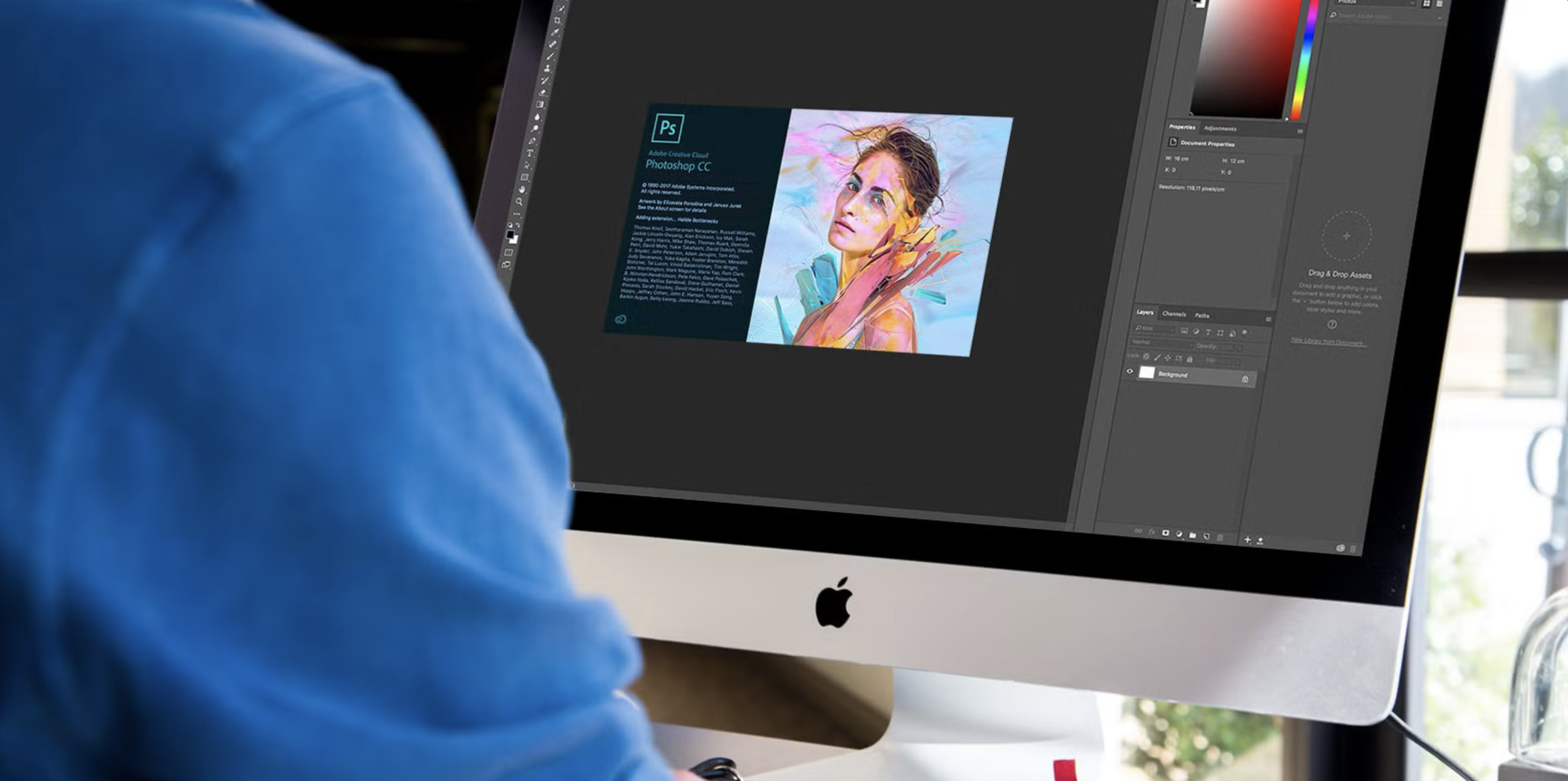
This chapter introduces Adobe Photoshop as a powerful photo editing and retouching tool. You’ll learn how Photoshop works using layers, how to make non-destructive edits, clean up images, and use modern AI tools like Generative Fill.
By the end of this chapter, you will understand:
• What Photoshop is and how it differs from Lightroom
• How Photoshop’s layer-based editing system works
• How to crop and reframe images to improve composition
• How to use adjustment layers for non-destructive edits
• How to remove blemishes using the Spot Healing and Healing Brush tools
• How Photoshop brushes work (size, hardness, opacity, and flow)
• How to use layer masks for selective editing
• How to invert masks to apply adjustments precisely
• How to use Photoshop’s AI Generative Fill to remove or replace elements in an image
chapter 9 Downloads
These notes and resources are designed to work alongside the video lessons in this chapter.
Read → Watch → Practice
Download and review the notes first, watch the lessons, and then complete the chapter task to reinforce what you've learned.
Save these resources for future reference as you continue through the course.
🎥 chapter 9 Videos
These Chapter 9 video lessons will guide you through the key concepts and techniques for this part of the course.
Take notes as you watch, and don’t worry about mastering everything all at once. You’ll build confidence through practice as you move through each lesson.
chapter 9 task
This task helps you practice basic Photoshop editing and retouching techniques while keeping your images natural and non-destructive.
Your goals this week are to:
Open and organize an image in Photoshop
Use the Crop Tool to improve composition
Apply at least two adjustment layers
Perform basic cleanup using Spot Healing and Healing Brush tools
Use brushes with controlled opacity and softness
Apply a layer mask to limit an edit to specific areas
Experiment with Generative Fill for cleanup or creative use
Next chapter
When you're ready, continue on to the next chapter.